|
|
|


LIBERO UNO User Guide
is a dynamic discovery service that unifies access to all services and content sources at your library. The typical library subscribes to dozens of databases and may be part of a community of libraries that surround it and provide additional services. ensures that Members find information that is relevant and accessible to them, and what may be "hidden" in those databases or at other libraries that they may have access to. It avoids the need to go to each database search engine and each librarys online public access catalogue (OPAC) individually.
is a metasearch engine and will search these search engines and other resources and display the results on a single screen.
In this Section |
Quickstart
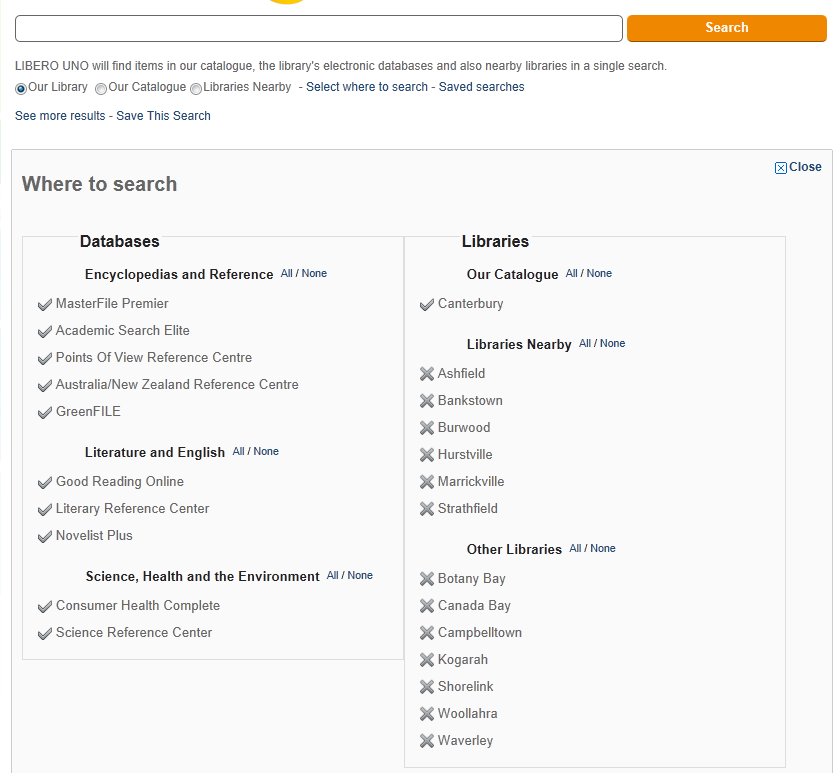
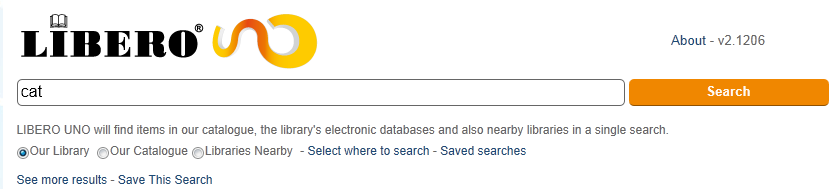
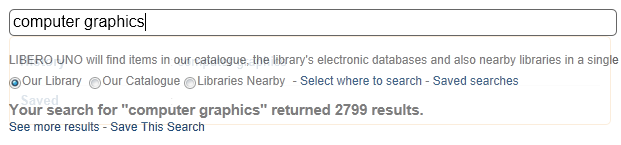
- Select the resources you would like to search by clicking on Select where to search or use one of the pre-configured defaults - Our Library, Our Catalogue, Libraries Nearby.
- Enter your search terms and press Enter or click on the Search button.
- will initiate a metasearch of the resources you selected. It will also present results already in its index immediately.
- If the initial results do not include the record you are looking for, will let you know after ten seconds whether the metasearch has brought back more results. You can either confirm this or wait for fifteen seconds and click the Search button again.
Determining which Resources to search
The library which provides to you, the patron, has pre-configured details as to which resources they would like to be available by default.
- The Our Library default selection has their own Library database selected, plus a selection of Electronic Databases.
- The Our Catalogue option will just search in the Library's own WebOPAC.
- The Libraries Nearby option will have selected a number of other Libraries in the surrounding area.
You can view the default selections by clicking on the Select where to search link. In the Where to search list you will see different resources grouped by type. You can click on these resources to toggle them either enabled or disabled for the subsequent search. You can also enable or disable them by clicking the All or None options next to each group heading.
Searching with LIBERO UNO
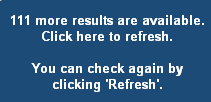
When you enter a search term and initiate the search by pressing Enter or clicking the Search button adjacent to the search term field, you are not merely running a search. will retrieve results from its preharvested index and return them immediately, but will also, if applicable, start a metasearch of all currently selected resources in the background. If you are not seeing relevant results or results that you are expecting, it is because does not currently have these results in its preharvested index. After a period of ten seconds, will go back to its index to check if these searches have returned new results. If they would improve the currently displayed set of results, you can confirm that you would like to display the new results by clicking on the notification box. You can also force another refresh from the index by clicking on the Search button or by clicking on See more results after a search has returned results.

Navigating search results
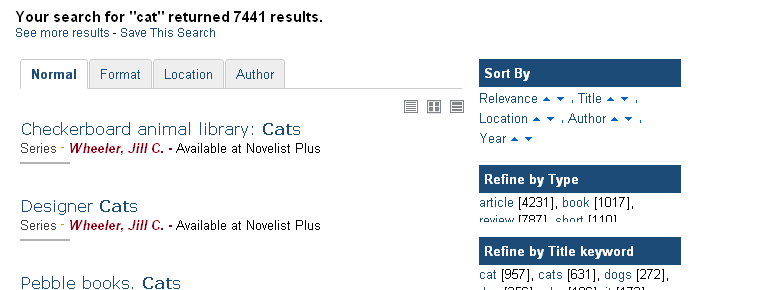
Once the search results are displayed, offers a number of options for the display of results:
- The display layout can be changed with the three icons just above the results pane. These include List, Grid and Details view of each of the results.
- The results may also be grouped by the tabs above the results pane and include Normal (i.e. grouping disabled), grouping by Format, Location and Author. These grouping options only operate on the search results previously returned to you.
- You can go to the subsequent pages by clicking on Next Page underneath the results pane.
- A Sort By selection can also be made to sort the results by either Relevance, Title, Location, Author and Year in either ascending or descending order with the links at the top of the Facets pane on the right.
Saving your search
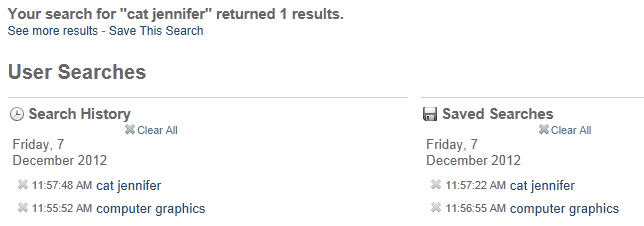
provides the option of saving your search terms. This is currently specific to the browser you are using and is stored as a cookie. If you would like to disable this facility, you can set a cookie policy within your browser that excludes the URL you are currently on from being able to deploy a cookie. The Save This Search link is underneath the "Your search for "xxxxx" returned NNN results" line.
Searches that have been saved can be accessed via the Saved searches link. This opens the User Searches dialog that includes both Saved Searches and Search History (your most recent search terms). Clicking on a listed term will rerun that search. Each can be cleared by clicking on X Clear All in the relevant section. The Search History search terms are cleared when the page is refreshed. When is part of the librarys LIBERO WebOPAC, is set to refresh back to the main page at an interval set by your library, which is most frequently either ten or fifteen minutes. This is a feature designed for public access terminals to refresh their state and to wipe the current session from the screen.
Faceting
|
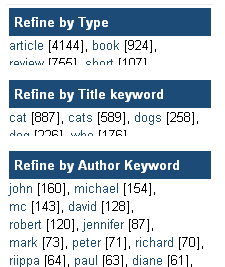
provides the facility to narrow down the search results that have been returned with the Faceting function. By clicking on any of the hyperlinks under the Refine headings on the right side you can add a term to the search box. For example, a search for 'cat' may return some thousands of results. By looking at the author keywords, you can determine that adding 'jennifer' would narrow the results down to at least 50, which you can do by clicking on the word. Meanwhile, however, may already start a more detailed search for the two terms 'cat' and 'jennifer' and may return hundreds of results. You can then refine by date explicitly. Note that these facets are not type restricted when clicked. That means that if you click the Refine by Date facet relating to 2004, you will get works that not only have been explicitly published in 2004 but also reference the date 2004 in the description or other fields. |
Other Search Engines
|
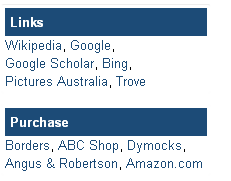
You can also use as a gateway to other search engines. By running a search within , at the bottom of the Facets pane, you will see two headings Links and Purchase which will link through to external resources such as websites, other search engines and stores. |